Wireless Temperature Sensor
Difficulty Level = 5 [What's this?]
UPDATE: I have re-done this project using simple 434MHz RF transmitter/receiver devices. Check out the new project!.
UPDATE: Also see this project for an easy way to display a temperature reading: Digit Shield Temperature Display.
I decided to explore the more advanced features of XBee radios by building a remote temperature sensor. You can get quite a bit of control over an XBee radio without a microcontroller at all. You can configure the radio to send sensor readings at particular intervals when it detects changes on certain input pins. For the details on configuring XBee radios, see the documentation at Digi International.
For this project, I configured the radio at the sensor end to read the analog input of pin 19 every 4 seconds and to send a sensor reading packet. Both the sender and receiver radios must be running the API firmware. This does not work if they are running the default AT firmware. And the “API” parameter is not the same as running the API firmware. You literally need to write a different firmware image to your radios using the X-CTU tool from Digi. I have Series 2 radios, so if you are using Series 1, you need to read the correct documentation for your radios and modify the code.
Input pin 19 on my sensor radio is configured (parameter D1) with value ’2′ which means that it will read analog input, and the IO sampling rate (parameter IR) is set to ’1000′ which sends a sample every 4096ms.
An LM34 temperature sensor outputs a variable voltage depending on the temperature. The mapping is extremely simple: 10mV for every Fahrenheit degree. So, at 72 degrees F, the output is 720mV.
Why did I choose pin 19? I started with pin 20, but I burned it out. The pins can only handle an analog input of up to 1.2V, and I think I may have sent too much into the pin. How? Well, let’s say it involved holding a cold Pepsi can on the circuit to cool off the temperature sensor, and I shorted out a connection with the can. Oops. I’m lucky I didn’t burn out the entire XBee chip.
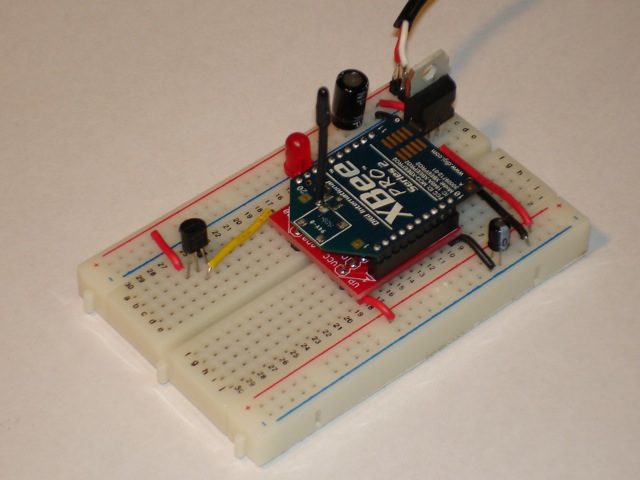
Remote temperature sensor
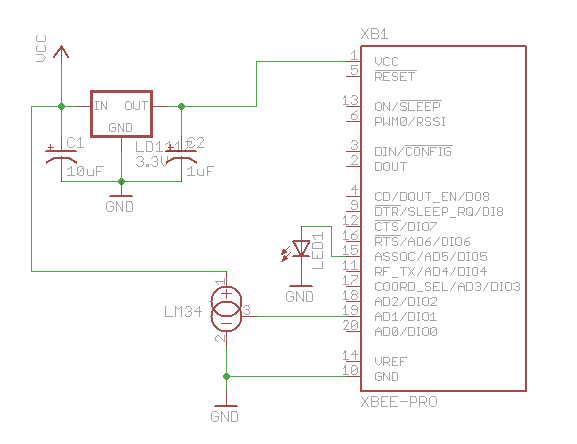
Schematic for remote sensor circuit
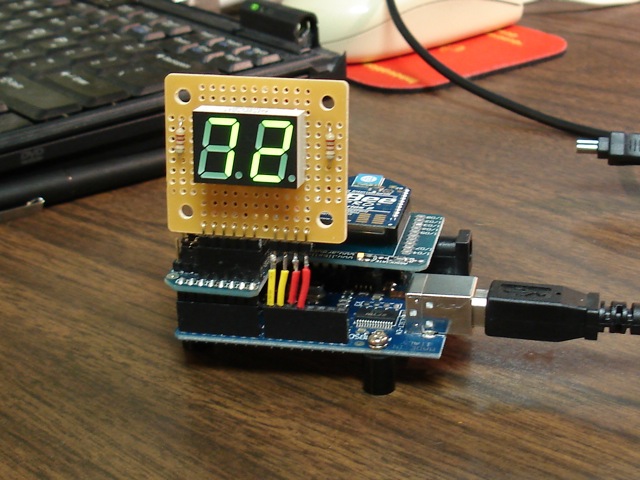
Arduino with XBee shield and LED display
#define NUM_DIGITAL_SAMPLES 12
#define NUM_ANALOG_SAMPLES 4
int groundPins[7] = {8, 2, 3, 4, 5, 9, 7};
int digitPins[2] = {11, 10};
int ON = HIGH;
int OFF = LOW;
int number[10][7];
int digit[2];
int TOP = 0;
int UPPER_L = 1;
int LOWER_L = 2;
int BOTTOM = 3;
int LOWER_R = 4;
int UPPER_R = 5;
int MIDDLE = 6;
int index;
int n = 0;
int packet[32];
int digitalSamples[NUM_DIGITAL_SAMPLES];
int analogSamples[NUM_ANALOG_SAMPLES];
void setup()
{
Serial.begin(9600);
for(int i=0;i<7;i++) {
pinMode(groundPins[i], OUTPUT);
}
for(int i=0;i<2;i++) {
pinMode(digitPins[i], OUTPUT);
}
initNumber();
setDigit(n);
}
void loop() {
readPacket();
drawDisplay();
}
void readPacket() {
if (Serial.available() > 0) {
int b = Serial.read();
if (b == 0x7E) {
packet[0] = b;
packet[1] = readByte();
packet[2] = readByte();
int dataLength = (packet[1] << 8) | packet[2];
for(int i=1;i<=dataLength;i++) {
packet[2+i] = readByte();
}
int apiID = packet[3];
packet[3+dataLength] = readByte(); // checksum
printPacket(dataLength+4);
if (apiID == 0x92) {
int analogSampleIndex = 19;
int digitalChannelMask = (packet[16] << 8) | packet[17];
if (digitalChannelMask > 0) {
int d = (packet[19] << 8) | packet[20];
for(int i=0;i < NUM_DIGITAL_SAMPLES;i++) {
digitalSamples[i] = ((d >> i) & 1);
}
analogSampleIndex = 21;
}
int analogChannelMask = packet[18];
for(int i=0;i<4;i++) {
if ((analogChannelMask >> i) & 1) {
analogSamples[i] = (packet[analogSampleIndex] << 8) | packet[analogSampleIndex+1];
analogSampleIndex += 2;
} else {
analogSamples[i] = -1;
}
}
}
}
int reading = analogSamples[1]; // pin 19
// convert reading to millivolts
float v = ((float)reading/(float)0x3FF)*1200.0;
// convert to Fahrenheit. 10mv per Fahrenheit degree
float f = v / 10.0;
// round to nearest int
n = (int)(f+0.5);
setDigit(n);
}
}
void drawDisplay() {
for(int g=0;g<7;g++) {
digitalWrite(groundPins[g], LOW);
for(int i=0;i<2;i++) {
if (digit[i] < 0) {
continue;
}
digitalWrite(digitPins[i], number[digit[i]][g]);
}
delay(0); // for some reason, this is required even if the value is 0
digitalWrite(groundPins[g], HIGH);
}
}
void setDigit(int n) {
n = n % 100;
digit[0] = n % 10;
digit[1] = (n / 10) % 10;
if ((digit[1] == 0) && (n < 10)) {
digit[1] = -1;
}
}
void initNumber() {
number[0][0] = ON;
number[0][1] = ON;
number[0][2] = ON;
number[0][3] = ON;
number[0][4] = ON;
number[0][5] = ON;
number[0][6] = OFF;
number[1][0] = OFF;
number[1][1] = OFF;
number[1][2] = OFF;
number[1][3] = OFF;
number[1][4] = ON;
number[1][5] = ON;
number[1][6] = OFF;
number[2][0] = ON;
number[2][1] = OFF;
number[2][2] = ON;
number[2][3] = ON;
number[2][4] = OFF;
number[2][5] = ON;
number[2][6] = ON;
number[3][0] = ON;
number[3][1] = OFF;
number[3][2] = OFF;
number[3][3] = ON;
number[3][4] = ON;
number[3][5] = ON;
number[3][6] = ON;
number[4][0] = OFF;
number[4][1] = ON;
number[4][2] = OFF;
number[4][3] = OFF;
number[4][4] = ON;
number[4][5] = ON;
number[4][6] = ON;
number[5][0] = ON;
number[5][1] = ON;
number[5][2] = OFF;
number[5][3] = ON;
number[5][4] = ON;
number[5][5] = OFF;
number[5][6] = ON;
number[6][0] = ON;
number[6][1] = ON;
number[6][2] = ON;
number[6][3] = ON;
number[6][4] = ON;
number[6][5] = OFF;
number[6][6] = ON;
number[7][0] = ON;
number[7][1] = OFF;
number[7][2] = OFF;
number[7][3] = OFF;
number[7][4] = ON;
number[7][5] = ON;
number[7][6] = OFF;
number[8][0] = ON;
number[8][1] = ON;
number[8][2] = ON;
number[8][3] = ON;
number[8][4] = ON;
number[8][5] = ON;
number[8][6] = ON;
number[9][0] = ON;
number[9][1] = ON;
number[9][2] = OFF;
number[9][3] = ON;
number[9][4] = ON;
number[9][5] = ON;
number[9][6] = ON;
}
void printPacket(int l) {
for(int i=0;i < l;i++) {
if (packet[i] < 0xF) {
// print leading zero for single digit values
Serial.print(0);
}
Serial.print(packet[i], HEX);
Serial.print(" ");
}
Serial.println("");
}
int readByte() {
while (true) {
if (Serial.available() > 0) {
return Serial.read();
}
}
}
Here’s how I wired the back of the LED display. The code displays each digit separately to save Arduino pins but toggles between the digits so fast you can’t see any flicker.
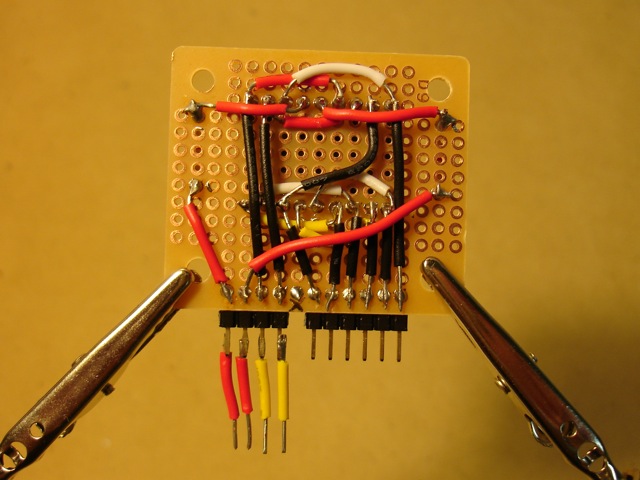
Back of LED display. The pin positions are designed to fit the XBee shield.
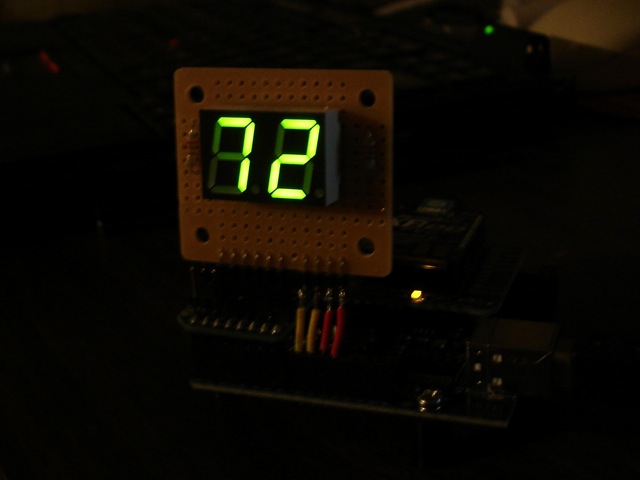
In the dark!


Thats nice! I need to get a Xbee sometime :P
Comment by Stigern on November 21, 2009 at 5:52 AM
Tytower did one with the cheaper modules but an arduino under the transmitter which allows for multiple sensors including digital. All up cheaper than an XBee and a range of 3 miles.
http://www.arduino.cc/cgi-bin/yabb2/YaBB.pl?num=1256188633
Comment by arnoldF on November 22, 2009 at 1:32 AM
@arnoldF: I read that thread, where did you read he is getting 3 miles range?
Comment by JD on November 22, 2009 at 10:23 AM
I PM’d hm and that was his estimate .I’m building one now hence my interest in yours. I’ve tested the transmitter to about 600meters atm.What distance in the clear does yours cover thanks?
Comment by arnoldF on November 22, 2009 at 2:16 PM
I have the XBee Pro radios with published range of up to 1 mile. I only did a range test once and got about 1/4 mile (outdoors). In practice, the range is much less than published, especially if you do not have a directional antenna.. I even talked to an engineer at Digi about it.
Comment by Michael on November 22, 2009 at 3:04 PM
[...] wireless temperature sensor project uses an XBee, breakout board, and simple power supply to transmit temperature data to an [...]
Pingback by XBee Wireless Temperature Sensor « The Shadow on November 25, 2009 at 9:02 AM
[...] wireless temperature sensor project uses an XBee, breakout board, and simple power supply to transmit temperature data to an [...]
Pingback by XBee Wireless Temperature Sensor | SquareCows on November 25, 2009 at 2:41 PM
Hey-
Awesome post, being able to use the Xbee with a standalone sensor is great. Looking at the schematic, it seems like pins 1 & 2 of the LM34 are both connected to ground. Is this accurate or is the lM34 actually connected to Vcc?
Comment by Eric on November 25, 2009 at 8:26 PM
Eric,
OMG, you are right — definitely an error in my schematic. The LM34 won’t work too well with pins 1&2 connected to GND, eh?
Comment by Michael on November 25, 2009 at 8:47 PM
Eric,
Schematic updated to reflect reality and sound electrical concepts.
Comment by Michael on November 25, 2009 at 8:58 PM
I understand that this is for learning about the XBee but if someone reading this wants to simply have remote wireless sensors around their house they should look at a JeeNode which is based on a ATmega328 and wireless and much cheaper.
Comment by David on November 26, 2009 at 7:29 AM
[...] wireless temperature sensor project uses an XBee, breakout board, and simple power supply to transmit temperature data to an [...]
Pingback by XBee Wireless Temperature Sensor | china online business,e business,e-commerce consultant on November 26, 2009 at 7:49 PM
[...] XBee Temperature Sensor Project Documentatin and Schematic nootropicdesign.com [...]
Pingback by Arduino XBee Wireless Temperature Sensor - Microcontroller Project Circuit on December 2, 2009 at 2:08 PM
I’m new to Xbee and Arduino, I’ve build a couple tutorial projects so far. I want to try this project and I have a couple of questions:
How should the Xbees be configured?
What is the power supply voltage on the transmitter board?
I see that pin 1 on the LM34 is connected to the positive side of the power supply. If the p/s voltage varies will it impact the temperature reading?
–Scott
Comment by Scott216 on January 6, 2010 at 9:15 PM
Scott216:
Configure the XBee radios to communicate with one another (set the addresses correctly) and use the API firmware. One radio will need to be running the coordinator firmware. The only other thing to do is set one of the analog pins to sample analog values. I set parameter D1 to value ’2′. And I set parameter IR to ’1000′ to set the sampling rate to once every 4096ms. That’s the only config needed. The source voltage for the transmitter is 5V. The LM34 requires 5V. The 3.3V voltage regulator steps the voltage down for the XBee which requires 3.3V. I don’t know the answer to your last question about variation in VCC. I suppose if it varies it could affect the analog output of the LM34. So you should use a regulated power source for VCC. Perhaps add a 5V voltage regulator to your transmitter.
Comment by Michael on January 7, 2010 at 8:24 AM
I’m trying to get this working. I took your code and removed the parts that drive the LCD display. You can see it here: http://www.arduino.cc/cgi-bin/yabb2/YaBB.pl?num=1264655063
I hooked up a temp sensor to pin 19, just like you did. I think the Xbees are configured correctly, but I wasn’t sure about what API mode I should be using. I don’t think I changed it, so it’s probably the default AP=0.
The packets that I’m getting look like:
7E 00 0A 83 00 01 20 00 01 04 00 03 FF 54
7E 00 0A 83 00 01 1F 00 01 04 00 03 FF 55
I went to the Xbee product manual (pg 58-63) to try and decipher these. I’m stuck on the 4th byte which is 83 for me. I think this is the API Identifier, but I don’t see 0×83 listed in the Xbee manual.
I’m using Series 1 Xbee. The voltage going into pin 19 on the transmitter is about 1.8 volts. When I do a Serial.println(reading); I get zero.
–Scott
Comment by Scott216 on January 28, 2010 at 11:41 AM
Michael could you please explain API configuration step by step . It is hampering my project which is very similar to what you have done here .
Comment by Chen123 on February 4, 2010 at 2:55 PM
Hi, i’m new in Xbee fields .
I wonder if in the receiving side , i use a xbee connect to the PC , how can we receive the data in clear form , such as “72 degrees F” ?
Cause in X-CTU , i think we just receive data as a packet with HEX numbers
Can you help me? Please!
Comment by cdf on May 12, 2010 at 10:18 PM
If you are using the normal “transparent” mode (that is, not API mode), then it’s just like a normal serial connection. You can send strings just as you normally would over a serial connection. Just read the XBee documentation.
Comment by Michael on May 12, 2010 at 10:31 PM
THANKS Michael! I have been learning volumes reading your code. You referred me here from the Adafruit formus.
Comment by Volkemon on May 30, 2010 at 2:16 PM
Hi nootropic design,
The pin assignments on your circuit drawing indicates that you used a XBee 802.15.4 module. I recently purchased 8 XBee ZB modules, and I am aware of the differences in pin assignments between these modules and the 802.15.4 ones. What deviations from your project would I need to make in order to build wireless temperature sensors out of the ZB modules?
Best regards,
L
Comment by ljeung on July 9, 2010 at 3:53 PM
ljeung: I am not familiar with the modules that you own, so I can’t tell you how to wire them. Have you studied the datasheet for the modules you own?
Comment by Michael on July 9, 2010 at 5:02 PM
Hi Michael,
Yes, I’ve studied the datasheet and also the manual for my modules. In particular, I’ve studied their pin assignments (on page 13 of the ZB module’s manual at http://ftp1.digi.com/support/documentation/90000976_F.pdf) and compared them to the ones on 802.15.4 modules (see page 7 of 802.15.4 module’s manual at http://ftp1.digi.com/support/documentation/90000982_B.pdf.)
L
Comment by ljeung on July 9, 2010 at 7:28 PM
ljeung: ok, I think you will find that you don’t have to make any changes, right? The pin assignments are the same for the pins used in the project. VCC, GND, and analog input 1.
Comment by Michael on July 9, 2010 at 8:11 PM
Okay, thanks, Michael.
L
Comment by ljeung on July 9, 2010 at 10:27 PM
[...] Project Lab Wireless Temperature Sensor – [...]
Pingback by Bookmarks for August 26th through September 8th « Daniel Nisbet on September 8, 2010 at 3:06 AM
I’m trying the same experiment with my XBee and an LM19 Temp sensor. When i recieve the result at the local XBee (Coordinator), the Remote one attached to the sensor (End device) always sends me the value 1024. I’ve measured the mV in the sensor output and it is around 800mV (below 1.1V). How do you decrease the output voltage? is it with those capacitors C1, C2??
Comment by olmo on September 14, 2010 at 9:14 AM
@olmo:
Hmm. I’m not sure what is going wrong for you. The capacitors are for power conditioning. A voltage of 800mV should result in a reading of about 682 (hex 0x2AB). Sounds like you are getting a value of 0x3FF in your packet? Take a closer look at the packet parsing and the raw packet. I was using pin 19 on the XBee. Are you also using pin 19?
Comment by Michael on September 14, 2010 at 9:38 AM
Exactly. The result i get is 03 FF, but it’s quite random tho. My sensor has around 690 mV on its output and the results i get are sometimes stable 1024, sometimes unstable random numbers. example (real measures): 0, 1023, 0, 624, 1023, 0, 17, 1023, 526 …
The measures are taken in the pin named D1/ADC1, with D1=2, which means analog.
How do you attach the sensor output to the D1 pin? solder it maybe? i’m afraid the contact beetween metals is not good enough, or maybe my XBIB-R-DEV board is not working properly :( the mV coming from the sensor are stable and ok, but the results are random. I parse the frames with the Xbee-api java library, so i don’t think that’s the problem. I’ve also tried monitoring em via X-CTU.
Comment by olmo on September 15, 2010 at 12:12 PM
@olmo:
I have used a breadboard to connect the sensor to the XBee. Maybe you have a bad connection?
Comment by Michael on September 15, 2010 at 6:51 PM
Probably the link beetween the sensor output and the XBee pin is not good enough. I have to try to put it into a breadboard. How do you feed the XBee outside the Dev.Board? which pins do you have to feed with 12V and which to GND? do you have a quick guide or schematic? Thank you very much
Comment by olmo on September 16, 2010 at 5:47 AM
@olmo:
I’m not sure what you mean by “Dev.Board”. I just put an XBee on a breadboard as shown above. The schematic is above.
Comment by Michael on September 20, 2010 at 11:51 AM
Hello,
I’m new with Xbee and i’m trying to understand your code, but i dont know what apiID = 0×92 is. I have been searching the manual but i dont found this configuration. Could u explain it please? (sorry if my question is very simple but I am lost with this) Thanks
Comment by fredy on October 13, 2010 at 2:39 PM
API id 0×92 is the identifier for an I/O Data Sample. See page 67 of http://ftp1.digi.com/support/documentation/90000866_C.pdf for the API frame layout of the I/O sample.
Comment by Michael on October 13, 2010 at 3:20 PM
I have a senior design project for the University similar to this and was wondering if you can take multiple remote temp sensors and send this back to the Arduino receiver?Possibly showing the different values through the web.
Comment by Dan on October 21, 2010 at 8:25 PM
Yes, XBee radios are designed to form mesh networks. So you can have multiple end devices sending information to the coordinator.
Comment by Michael on October 21, 2010 at 10:27 PM
can i have u’r schismatic diagram for the led display .
Comment by jason on November 22, 2010 at 1:06 AM
can i know the arduino code is testing the led light or sensing the temperature?
Comment by billy on November 22, 2010 at 10:57 PM
@jason: I would not worry about how I wired the LED display. I should have had a resistor on each LED, but took a shortcut. Just search the internet for the many resources on 7 segment displays.
@billy: I do not understand your question. What do you mean?
Comment by Michael on November 23, 2010 at 7:13 AM
I was wondering how I could modify this code to simply display the temperature in the serial monitor… I’m having a slight difficulty determining what modules are for receiving information and which are for the LED display… Thanks so much :-D
Comment by EngGirl on November 28, 2010 at 5:45 PM
@EngGirl
Instead of calling drawDisplay(), just call Serial.println(n);
Comment by Michael on November 28, 2010 at 8:36 PM
Thanks so much… unfortunately I can’t quite say that I have my temperature sensor up and working yet because I just turned the power on to only receive values of 0 and for my temperature sensor to get so hot it burnt my finger… so needless to say I’ll keep trying but thank you for your speedy response!
Comment by EngGirl on November 29, 2010 at 5:14 PM
If the sensor gets hot, then you don’t have the power connected correctly…! Look at the datasheet carefully for the pinout.
Comment by Michael on November 29, 2010 at 6:29 PM
Thanks so much… I fixed the configuration of the temperature sensor and now I am getting data… however, not quite the data that I expected. I’m getting hex values every four seconds (the four seconds was expected). What I originally thought was that the last two digits of the hex output was the temperature but when I converted it to decimal it gave me numbers like 50 degrees which was entirely colder than it was in the room. I then tested it with a blow dryer and it didn’t change. I’m thinking that it’s possible that the temperature sensor no longer works after being fried. Thanks so much for all of your help though as well as your speedy responses!
Comment by EngGirl on November 30, 2010 at 3:56 PM
my 7 segment light up d.but cant recieve the temperature.isit the code have problem? About the X-CTU, after i send the code into the board my X-CTU can communicate with the board dy…and solution to fix that?
Comment by lee on December 9, 2010 at 8:00 AM
EngGirl you can run the whole thing? can i have your contact? email? or msn? because i really urgent to have ur information to run my project..thank.
Comment by lee on December 9, 2010 at 8:04 AM
Hi – cool project. I am trying to replicate this to learn a bit more about XBees and API coding. I have two XBees configured with the ZigBee API firmware, one as a co-ordinator, the other as a Router/End Device. I can see nowhere to set the IR value in the XBee config via X-CTU. Can you help ?? Cheers.
Comment by ilium007 on December 11, 2010 at 5:54 AM
@ilium007 – In the X-CTU tool, read in the values from the modem. Then under IO Settings, there is another group of parameters called IO Sampling. Expand that set and you’ll see the IO Sampling Rate parameter (IR).
Comment by Michael on December 11, 2010 at 9:05 AM
I am obviously doing something wrong !!!
Comment by ilium007 on December 11, 2010 at 10:28 PM
http://dl.dropbox.com/u/973862/forums/Digi_X-CTU_IO.png
Comment by ilium007 on December 11, 2010 at 10:28 PM
Would someone be able to take a look at the X-CT screenshot above and see if you can see what I am doing wrong ? There is no IO Sampling attributes there for me to change !
Comment by ilium007 on December 12, 2010 at 2:46 AM
Hi…is that any different i change lm 34 to lm 35? Does Xbee at the remote temerature sensor part by adding any PIC to run it? or it can run without PIC? im a newbee on this arduino and xbee project.
Comment by billy on December 12, 2010 at 6:59 AM
@ilium007: There is an IO Sampling section in my modem configuration when I use X-CTU. My devices are XBee Pro so the device is XBP24-B and my firmware is ZNET 2.5 ROUTER/END DEVICE. Looks like your devices are not XBee Pro, so they are different. I don’t know if you can set the IO sampling rate for your devices — what does your datasheet say about it? You did read the datasheet I assume.
Comment by Michael on December 12, 2010 at 8:03 AM
@billy: Compare the datasheet for the LM35 to the LM34. It looks like the pinout is the same, so you should be able to use the LM35 centigrade sensor, but you’ll obviously need to change the temperature calculations. No, there is not a PIC microcontroller running the XBee. The schematic is included in the project.
Comment by Michael on December 12, 2010 at 8:07 AM
@Michael – the manual I have for the XBee (XB24-B) does state the IR setting, but given I could not find it in the GUI I used the Python API to remotely set it. I gace up late Sat night and played GT5 on PS3 instead.
Comment by ilium007 on December 12, 2010 at 4:57 PM
// convert reading to millivolts
float v = ((float)reading/(float)0x3FF)*1200.0;
// convert to Fahrenheit. 10mv per Fahrenheit degree
float f = v / 10.0;
// round to nearest int
n = (int)(f+0.5);
change the calculation at here?
Comment by billy on December 12, 2010 at 9:54 PM
Massive progress !!! A mate suggested I use the XB-24ZB firmware (basically a ZigBee upgrade for my XBee 2.5) and I then got the IO Sampling menu. I have set it all up and now I get, every 5secs, a temp value at the Arduino !!!!
Temp: 0
7E 00 12 92 00 13 A2 00 40 64 F7 5D 1B 91 01 01 00 00 01 02 88 87
Temp: 0
7E 00 12 92 00 13 A2 00 40 64 F7 5D 1B 91 01 01 00 00 01 02 88 87
Temp: 0
7E 00 12 92 00 13 A2 00 40 64 F7 5D 1B 91 01 01 00 00 01 02 88 87
Temp: 0
7E 00 12 92 00 13 A2 00 40 64 F7 5D 1B 91 01 01 00 00 01 02 88 87
Temp: 0
7E 00 12 92 00 13 A2 00 40 64 F7 5D 1B 91 01 01 00 00 01 02 88 87
Temp: 0
Problem is. I am now getting the Temp: 0 thing.
I am one step closer though !! Woo Hoo !
Comment by ilium007 on December 13, 2010 at 5:13 AM
i facing another big problem! how could i know my xbee can communicate each other. i using X-CTU to change their address already by follow the instruction from datasheet.besides, after i upload the programming code to my arduino board,then i connect to X-CTU.when i click TEST.It show UNALBE TO COMMUNICATE.
Comment by billy on December 13, 2010 at 6:32 AM
@ilium007: your packets look good, but it looks like you have the sensor connected to pin 20 on the XBee? The code looks for the sample on pin 19. The temperature is in these two bytes near the end of the packet: 02 88
To get temperature, this value is divided by the max value 0x3FF and multiplied by 1200.
So, (0×288/0x3FF) * 1200 = 760.1173mv
At 10mv per degree, your temperature reading is 76 degrees.
If you are using pin 20, change this line:
int reading = analogSamples[1]; // pin 19
to this:
int reading = analogSamples[0]; // pin 20
Comment by Michael on December 13, 2010 at 9:39 AM
@billy: the LM35 reports 10mv per celsius degree. If you want to display Fahrenheit, convert celsius to Fahrenheit in your code.
float c = (5.0/9.0)*(f-32.0)
Comment by Michael on December 13, 2010 at 9:44 AM
@Michael – this is really helpful, thanks. I am still at a bit of a loss to the 1200. My TMP36 (centigrade) sensor does not seem to have an upper mv rating, in the data sheet I see 1000mv at 50 degrees centigrade in the table but I can’t find an upper limit. Do you just work out the range at which your are measuring and divide the 1024 digital resolution across that ? So say that I wanted to measure up to 50 degrees centigrade, I would take the ADC output / 1023 (why that is not 1024 I don’t know) and then multiply by 1000 (1000mv at 50 degrees). Would this then give me a mV output in the range of 0 to 50 degrees centigrade?
If you have a moment and could take a look at the data sheet that would be awesome. http://www.analog.com/static/imported-files/data_sheets/TMP35_36_37.pdf on page 8.
Comment by ilium007 on December 13, 2010 at 5:02 PM
I think I have an answer – will try this tonight:
(from http://www.ladyada.net/learn/sensors/tmp36.html)
Voltage at pin in milliVolts = (reading from ADC) * (5000/1024)
This formula converts the number 0-1023 from the ADC into 0-5000mV (= 5V)
If you’re using a 3.3V Arduino, you’ll want to use this:
Voltage at pin in milliVolts = (reading from ADC) * (3300/1024)
This formula converts the number 0-1023 from the ADC into 0-3300mV (= 3.3V)
Then, to convert millivolts into temperature, use this formula:
Centigrade temperature = [(analog voltage in mV) - 500] / 10
Comment by ilium007 on December 13, 2010 at 6:30 PM
@ilium007:
The sensor outputs 10mv per degree, no matter what it is connected to, and no matter what range you want to measure.
1200mv is a characteristic of the XBee pin, not the sensor. The analog input pin on the XBee can measure 0-1200mv. It reports this voltage measurement as a value from 0-1023. So if the XBee ADC reports a value of 300, then this is (300/1023) * 1200 = 351.9mv. 351.9mv is 35.19 degrees.
The value is 1023 (not 1024) because 1023 is the largest number you can represent with 10 bits. It is a 10 bit ADC. It can represent 1024 values, and the values are 0-1023. The zero counts.
Comment by Michael on December 13, 2010 at 6:44 PM
@ilium007: is your sensor connected to the Arduino or the XBee? I thought you were reading a temperature at the XBee and transmitting the value to the Arduino? If so, the ADC on the Arduino has nothing to do with this! You are not measuring any voltages at the Arduino. You are simply receiving serial data from an XBee that measured a voltage with its ADC.
Comment by Michael on December 13, 2010 at 6:49 PM
Yeah I get it. I am not measuring anything on the Arduino (the little code sample I included was for reading direct from an Arduino but I am not doing this – I included just for the purposes of the calculation). I am simply using the Arduino to run the code that reads the Din and Dout from the receiving XBee. I was not aware the ADC pin on the XBee only read up to 1200mv (reading XBee doco again now ;) ) – so what happens when the TMP36 delivers a max of 5v out its signal pin ? With the 500mV offset at zero on that sensor, at 25 degrees centigrade I should see 750mV on the centre pin of the TMP36 and at 50 degrees centigrade I would see 1500mV which would do what to the ADC input on the XBee ? Excuse me if I sound ignorant, but even if 1023 is the largest number that can be represented with a 10 bit number, there are still 1024 steps between 0 and 1023 – is there not ?
In your calculation above, the 300 (ADC) relating to 35.19 degrees, last night in my air conditioned office (probably around 21 degrees centigrade) the ADC pin was reporting around 623. Something is way off there. I might go and buy another TMP36 and see if I get a different reading.
Comment by ilium007 on December 13, 2010 at 7:36 PM
From page 96 of the XBee Guide ( http://ftp1.digi.com/support/documentation/90000976_G.pdf ):
Analog samples are returned as 10-bit values. The analog reading is scaled such that 0×0000 represents 0V, and
0x3FF = 1.2V. (The analog inputs on the module cannot read more than 1.2V.) Analog samples are returned in order
starting with AIN0 and finishing with AIN3, and the supply voltage. Only enabled analog input channels return data
as shown in the figure below.
To convert the A/D reading to mV, do the following:
AD(mV) = (A/D reading * 1200mV) / 1024
They are dividing by 1024 to get a mV reading – is this correct ?
Comment by ilium007 on December 13, 2010 at 7:51 PM
You’re right that the sensor will not work with the XBee ADC if it outputs a value greater than 1.2V. You will burn out the input pin on the XBee (I think). I didn’t know your sensor had an offset of 500mV at 0 degrees. That gives you a bit of a problem and you won’t be able to measure temperatures as high as you want.
Yes, 1023 is the maximum value, but there are 1024 possible values because you count zero as a value. If you test the formula at the upper limit, it becomes more clear.
Regarding the formula from the datasheet — that formula looks incorrect. They should divide by 1023.
Look at it this way: It says that the value 0x3FF (which is 1023) represents 1.2V (1200mV). So plug this highest possible reading into the formula and see if it works: (1023 * 1200) / 1024. Does this give 1200mV? Nope. But (1023 * 1200)/1023 certainly is 1200mV. You have to divide by the maximum value, not the number of possible values. I have to think about this every time, too, and then I just test at the maximum to make it more clear in my mind.
Comment by Michael on December 13, 2010 at 8:23 PM
Cool – I will give it another go tonight. Thanks for your efforts.
Comment by ilium007 on December 13, 2010 at 8:40 PM
@Michael – just looking at the sensor you are using, I see this:
Supply Voltage +35V to −0.2V
Output Voltage +6V to −1.0V
Output Current 10 mA
So your sensor could theoretically go higher than 1200mV ? What should I be looking for in a sensor ? It seems most temp sensors I have found go well above 1200mV.
But on the other hand, even with my 500mV offset at 0 degrees C, at 25 degrees C I should see 750mV, at 50 degrees C I should see 1000mV and I could go up to 70 degrees for the ADC ceiling of 1200mV.
I hope this is correct.
Comment by ilium007 on December 13, 2010 at 9:36 PM
Yes, that’s true, my sensor can output more than 1200mV. But I simply didn’t put it in an environment where that would happen. Sounds like you can go up to 70 C “safely”.
Comment by Michael on December 13, 2010 at 9:43 PM
Hot Dog we have a Weiner…..
Temp: 28
7E 00 12 92 00 13 A2 00 40 64 F7 5D 1B 91 01 01 00 00 02 02 92 7C
Temp: 27
7E 00 12 92 00 13 A2 00 40 64 F7 5D 1B 91 01 01 00 00 02 02 92 7C
Temp: 27
7E 00 12 92 00 13 A2 00 40 64 F7 5D 1B 91 01 01 00 00 02 02 91 7D
Temp: 27
7E 00 12 92 00 13 A2 00 40 64 F7 5D 1B 91 01 01 00 00 02 02 90 7E
Temp: 27
@Michael – thanks for all your help mate.
Comment by ilium007 on December 14, 2010 at 3:09 AM
int reading = analogSamples[1]; // pin 19
// convert reading to millivolts
float v = ((float)reading/(float)0x3FF)*1200.0;
// convert to Fahrenheit. 10mv per Fahrenheit degree
float f=v/10.0;
float c =(5.0/9.0)*(f-32.0);
@Michael-after i put this i still cant communicate with my remote temperature sensor board? is that any problem to fix it?im worrying about the communication of my xbee on remote temperature sensor board and xbee shield.beside X-CTU i still can use what software to check their communication? my 7 segment show double 00.it cant sense any temperature. can teach me how to get it right? thanks.
Comment by billy on December 14, 2010 at 6:03 AM
@billy, use the print statements in the code to output the packets (like ilium007 did above). Also, isn’t your sensor a Celsius censor and you want to convert to Fahrenheit? I have to the formula for converting F to C. You need to convert from C to F, so solve for f in the equation.
f = (9.0/5.0)*c+32
Comment by Michael on December 14, 2010 at 7:49 AM
@Michael, i facing a problem..when upload the code into arduino board. It unable to communicate with my laptop. But i put in other code .like LED blinking code.it can communicate with my laptop.so the print statement is a part from X-CTU?
Comment by billy on December 14, 2010 at 7:56 AM
You understand that X-CTU is only for configuring your modems, right? After configuration, you don’t use X-CTU as part of the project at all.
Comment by Michael on December 14, 2010 at 8:03 AM
@Michael- Mean that after i use X-CTU change the address of 2 xbee to let them communicate.i wont use it anymore? how can i show the output like (illium007) can you teach me? for the programming part i just add the formular that u gv me just now f = (9.0/5.0)*c+32; is put in which part of the code? cos after i put i got an error on the f and c.thanks for helping.
Comment by billy on December 14, 2010 at 8:10 AM
@billy, Correct, you don’t use X-CTU after configuring the modems. Slow down and think about what you are trying to accomplish. This project is about a remote sensor attached to an XBee which transmits the sensor readings to an Arduino to display. What role would X-CTU play?
I’ve already documented everything in the project. I’ve explained how to configure the modems, how to wire the sensor, and provided all the code for parsing the packets. You can get it working if you try. Since your sensor will transmit Celsius, you can translate to Fahrenheit if you want, and I gave you the formula. You can get the code working if you TRY. Just slow down and look at the code carefully to figure it out. If you are not able to do C programming, then this is not the right project for you, but if you want to LEARN, then you can try and with some work you will figure it out.
Comment by Michael on December 14, 2010 at 8:47 AM
@Michael- i have construct all the circuit and the arduino part and 7segment have already display the double 00.just i cant get the temperature.i have try many time on this project. i follow all the instruction it just the LM 34 i change it to LM 35. can u show me the calculation part with using LM 35 temperature sensor. Im first time handling this arduino. im still learning. Hope you can teach me.thanks.
Comment by billy on December 14, 2010 at 9:00 AM
@billy, I already gave you the formula (which you could have found using Google). If c is the temperature in Celsius, then f = (9.0/5.0)*c+32
LOOK AT YOUR CODE AND TRY AGAIN. And read this: http://nootropicdesign.com/projectlab/difficulty-levels/
Comment by Michael on December 14, 2010 at 9:27 AM
I’m having a problem with some LM34′s in a circuit very similar to this one. Both sensors are consistently reading about 5 degrees high when compared to a calibrated thermometer held touching the sensor. Is this something you’re seeing as well?
Comment by Greenwing on January 24, 2011 at 8:42 PM
@Michael or @ilium007 I’m having a very difficult time loading the API firmware onto my XBee and am therefore, currently, only getting 14 bytes in my packet as ilium0007 was. http://www.sparkfun.com/products/8664 This is the XBee that I’m using. I can’t seem to get it to run the API firmware at all. It gives me an error every time. If you could possibly walk me through setting up the configuration of the XBees I would really appreciate it because I have been working on this for ages and finally realized what the problem was only to have it be what seems like impossible to fix. I would really appreciate your help because I think I have modified your code to do exactly what I need however can’t figure out if it works because I’m not getting the proper packet. Thank you soooo much in advance especially since you’ve been so helpful in the past! I hope to hear from you soon!
Comment by EngGirl88 on February 20, 2011 at 8:47 PM
@EngGirl88:
I’m not sure what problem you are having. You said “I can’t seem to get it to run the API firmware at all. It gives me an error every time.” What do you mean? Do you mean that you are unable to burn the API firmware onto your XBee radios using the X-CTU tool? What errors? Errors from what?
Write the coordinator API firmware on one device, and end device API firmware on the other device. On the sensor radio (the transmitter), set parameter D1 to value 2. And set IR to value 1000. Use X-CTU to do all of this.
If you are having problems, please describe the problems in detail. Tell us exactly what you are doing and exactly what errors you get.
Comment by Michael on February 21, 2011 at 8:02 AM
Yes, I meant that I was unable to burn the API firmware onto my XBee radios using the X-CTU tool. I will walk you through the steps that I took attempting to configure the XBee on the sensor end and the errors that I got in each step. Ok… so I opened X-CTU as usual and chose the appropriate serial port and selected Test/Query at which time I got a pop-up which said:
Communication with Modem. OK
Modem Type XB24
Modem Firmware Version 10CD
So that step worked fine. Then I read the parameters which worked fine as well. Then I switched some of the settings under the modem configuration to:
Modem Type: XB24-ZB
Function Set: Zigbee End Device API
I then selected write and this is where things fall apart. I got the following errors:
A pop up: Unable to program module. Incompatible function set selected for current module.
On the bottom “progress” section:
Getting Modem Type… OK
Programming Modem… Incompatible modem selected for programming
Write Parameters… Failed
Sorry this response was so long but I tried to make the response as detailed as possible. I tried so many things I thought I bricked my XBees but was able to “reset” them through a procedure I found online thankfully. But still get the errors above. Thanks so much again for all of your help and I look forward to hearing back from you soon!
Comment by EngGirl88 on February 21, 2011 at 11:39 PM
Ok, you have a XB24 modem. Now just try to write the API firmware to it. Don’t change settings. Just find the firmware version that is the API firmware for your XB24 modem and write it. THEN you can worry about changing settings in the modem. Also, the vendor has support forums for their product. http://forums.digi.com/support/forum/index
Comment by Michael on February 22, 2011 at 3:25 PM
Ok… I am still unsure how to write the API firmware to the modem… I thought that’s what I was attempting to do in the steps I outlined before. The only choice I have that looks remotely like this is to set AP=1 (API Enabled) however I still don’t get the proper sized packets and from what I have read this is not actually API mode. Sorry to bother you but I’m sort of stuck here and it seems as though everywhere I look doesn’t quite have information that is actually helpful (at least not in terminology I understand). Thanks so much again!
Comment by EngGirl88 on February 22, 2011 at 4:29 PM
Did you read the manual for X-CTU?
If you google “X-CTU manual”, the first hit is the manual. http://ftp1.digi.com/support/documentation/90001003_a.pdf
You have an XB24 modem. You do not have an XB24-ZB modem.
1) Read firmware.
2) Change function set to API firmware. Either Coordinator or end device.
3) Write.
DON’T change the modem from XB24 to XB24-ZB. You said you have an XB24 modem. You can’t write firmware for a different product onto your radio.
Comment by Michael on February 22, 2011 at 4:48 PM
Thank you for your timely reply yet again. I am slightly concerned however because I don’t seem to have API firmware in the function set options. The options that I do have are:
XBEE 802.15.4
XBEE 802.15.4 ANALOG IO ADAPTER
XBEE 802.15.4 DIGITAL IO ADAPTER
XBEE 802.15.4 RS232 ADAPTER
XBEE 802.15.4 RS232 POWER HARVESTER
XBEE 802.15.4 RS485 ADAPTER
XBEE 802.15.4 SENSOR ADAPTER
XBEE 802.15.4 USB ADAPTER
Thank you for guiding me to the X-CTU manual since I did not know there was a manual for that however I am still at a loss.
Comment by EngGirl88 on February 22, 2011 at 7:17 PM
@EngGirl88,
Perhaps your device is not capable of API firmware. I don’t know about every XBee device, just the ones I have. Please consult the Digi documentation and support forums to learn about your device. Digi has a huge support forum so you should ask questions there.
Comment by Michael on February 22, 2011 at 7:37 PM
[...] first one 8 bytes left and add the two values together. I got most of my understanding in code from this guy. His code is really flexible and allows for variable input. This is great if you’re not sure [...]
Pingback by How to use an xBee Series 1 in API mode | Cribbs Technologies on March 4, 2011 at 8:59 AM
Hi nootropic design,
I am a little simplify your code (writes the temperature into the serial port of the PC).
It works well, but after about one hour, the arduino makes four times restart and then working normaly again. This is repeated.
For more informations: http://arduino.cc/forum/index.php/topic,56276.0.html
Please, could someone help me.
Thanks for reply, George.
Comment by George on March 23, 2011 at 7:22 AM
Hi Good Tutorial,
I am using a similar method to read an IMU that outputs an analog voltage reading. I am reading two analog inputs (DI00 and DI01). The problem I am having is that the data I receive is not in the format that is specified in the manual or in this tutorial http://www.digi.com/support/kbase/kbaseresultdetl.jsp?kb=180
Here is a sample of the data:
7EFE03FF03FE03FF03FE03FF03FFFE03
7E03FF03FE73FF03FE03FF03FE03FF03
7E001C835678220005060003FF03FE03
7EFE72FF03FE03FF03FF03FF03FE0303
7E001C835678220005060003FF03FE03
7E03FF03FF03FE03FF03FF03FF03FE03
7EFE03FF03FD7503FD03FF03FD03FE03
7E001C8356782200050600FE76FF0303
7E03FE73FF03FE03FF03FD03FF03FD03
7E001C835678220005060003FF03FF03
7E7403FE03FF03FD03FF03FD03FFFF03
7E03FF03FF03FD7103FF03FF03FEFF03
7E001C835678220005060003FD74FF03
7EFF03FE7203FE03FF03FE03FF03FF03
I am using XB24 version 10E8. I have function set as XBEE 802.15.4 and ATAP = 1 (API Enable). The base and the receiver modules are set up basically as they say in the above tutorial. Not sure what I am doing wrong. Any help is appreciated.
Thanks
Comment by Mark on July 12, 2011 at 12:55 PM
Did you write the API firmware to the radios?
The API parameter has nothing to do with running the API firmware.
Comment by Michael on July 12, 2011 at 1:33 PM
Ok I looked around and found this tutorial http://www.instructables.com/id/Configuring-XBees-for-API-Mode/ for writing API firmware to xbee and it seems that the xbee has to be series 2 ( I think). I will check the ones I have when I get a chance but I was wondering if it is safe to write XB24-B to XB24.
Also I tried just ignoring the messages that do not have (5678) as the source bytes and I seem to be getting the correct messages although I think too few messages are coming too slowly. Is this an ok workaround?
Thanks for your help.
Comment by Mark on July 13, 2011 at 10:32 PM
u tutorial is so nice and how u design the Arduino with XBee shield and LED display i cant understand can clearly explain
Comment by manikandan on August 20, 2011 at 10:25 AM
manikandan, I don’t understand your question.
Comment by Michael on August 20, 2011 at 5:17 PM
I am sorry for my ignorance but I am a little unclear as to what the transmitting xbee module is plugged into. Is that a xbee shield of some sort?
Thanks
Comment by SteveD on August 31, 2011 at 4:30 PM
SteveD, that’s just a breakout board to translate the 2mm pin spacing on the XBee to breadboard-friendly 0.1″ spacing.
Comment by Michael on August 31, 2011 at 9:02 PM
Wow, I’ve searched high and low for zigbee temperature sensors and nobody seems to have anything like this! I’m definitely going to build this.. amazing work!
Will this setup work for me to be able to read multiple sensors sprinkled throughout a building? can the receiver end pick which temp sensor to query?
thanks!!!
rob
Comment by Rob on September 1, 2011 at 3:02 PM
You can set up a mesh network with multiple sensors sending data to the coordinator. That’s a more sophisticated setup, so you’ll need to read the XBee documentation carefully to understand all that.
Comment by Michael on September 2, 2011 at 7:49 AM
I would like to read more than one ADC channel, when I try to measure two channels the results are incorrect. Adjust one ADC level gives a change to the other. Can someone help with me?
Thanks
Comment by xsilvergs on November 22, 2011 at 6:57 AM
xsilvergs, did you configure the sending XBee to use two ADC pins? I’ve used two ADC pins on an XBee and not had any interference.
Comment by Michael on November 22, 2011 at 8:41 AM
Hi Michael,
I’m trying to implement your project. I’m using xbees (series 1) and a Fio Arduino. Before I add the temperature sensor, I’m trying to connect a direct source (3V to VCC and VREF and 0.101V to pin 19) to see if I can get that value (the equivalent in Fahrenheit). I’m using XCUT to set the xbees.
1) Xbee + Arduino (I set the xbee to “end device”)
2) Xbee + Power Source (I set pin 19 to option 2 (ADC), I also set this one to be the “coordinator” and I set the sample rate to “1000″)
I loaded your code and I got the following error:
7E 00 0A 83 00 00 3C 00 01 04 00 00 00 3B
Temp: 0
7E 00 0A 83 00 00 44 00 01 04 00 00 00 33
Temp: 0
7E 00 0A 83 00 00 3C 00 01 04 00 00 00 3B
Temp: 0
7E 00 0A 83 00 00 3D 00 01 04 00 00 00 3A
Temp: 0
7E 00 0A 83 00 00 45 00 01 04 00 00 00 32
Temp: 0
7E 00 0A 83 00 00 48 00 01 04 00 00 00 2F
Temp: 0
7E 00 0A 83 00 00 47 00 01 04 00 00 00 30
Temp: 0
Is there a way to fix this? Do you think my error has to do with the configuration of the xbees or the code itself? I’ll appreciate your help.
-Sergio
Comment by Sergio on November 22, 2011 at 7:46 PM
Sergio, my code is for Series 2 XBee radios. Did you write the API firmware to the devices? They need to be running the API firmware.
Comment by Michael on November 22, 2011 at 8:04 PM
Michael,
I’m sure the Xbee sends the correct data, I feel the problem is the Arduino code which I don’t understand fully. Why the digitalChannelMask ?
The code received on the coordinator is: 7E 00 14 92 00 13 A2 00 40 6A 4E E6 7D C1 01 01 00 00 06 00 00 03 FF 92
The end device is set to use ADC1 and ADC2 (ADC0 not used)
Comment by xsilvergs on November 23, 2011 at 2:19 AM
Your packet looks correct, and the code will properly parse it. The digital channel mask is a two bytes that indicates which pins have digital inputs set. It is packet[16] and packet[17] in your packet, and the values are 00 and 00. This is correct. You didn’t configure your sending XBee for digital inputs.
The analog channel mask indicates which analog pins are set to as inputs. It is packet[18], and the value is 0×06. This means that there are samples for ADC1 and ADC2, which is correct. Each sample is two bytes and they start at packet[19]. So the sample for ADC1 is 0×0000, and the sample for ADC2 is 0x03FF. The last byte of the packet 0×92 is the checksum.
So the packet and code are correct. The values being transmitted are 0×0000 and 0x03FF. 0x03FF is 1023 and is the maximum value, and represents 1200 mV
Are you aware that the ADC channels on the XBee can only handle 1200 mV? If the output range of your sensor is more than 1.2V, then you can damage the XBee.
Comment by Michael on November 23, 2011 at 9:06 AM
Michael,
Thank you for what must be the best explanation I’ve read on the net.
I now have now shortened code for the Arduino and have a working example.
Thanks again.
Tony
Comment by xsilvergs on November 24, 2011 at 1:18 AM
I’ve just realised that one axis doesn’t change, what have I done wrong?
#define NUM_ANALOG_SAMPLES 4
int packet[32];
int analogSamples[NUM_ANALOG_SAMPLES];
int ADC1, ADC2, ADC3;
void setup()
{
Serial.begin(9600);
}
void loop() {
readPacket();
}
void readPacket() {
if (Serial.available() > 0) {
int b = Serial.read();
if (b == 0x7E) {//find first byte in string
packet[0] = b;
packet[1] = readByte();
packet[2] = readByte();
int dataLength = (packet[1] << 8) | packet[2];
for(int i=1;i<=dataLength;i++) {
packet[2+i] = readByte();
}
int apiID = packet[3];
packet[3+dataLength] = readByte(); // checksum
printPacket(dataLength+4);
if (apiID == 0×92) {
ADC1 = (packet[19] << 8) | packet[20];
ADC2 = (packet[21] << 8) | packet[22];
ADC3 = (packet[23] << 8) | packet[24];
}
}
}
}
void printPacket(int l) {
for(int i=0;i < l;i++) {
if (packet[i] 0) {
return Serial.read();
}
}
}
Any help much appreciated.
Comment by xsilvergs on December 13, 2011 at 7:31 AM
iam new in interfacing modules.
i want to plug 3 different sensors with interfacing modules and then transmit the values by modules in a same floor.
pls guide.
Comment by waleed on February 29, 2012 at 8:59 AM
hi.
I have a problem with the format of packets.
The xbee is Series2 xb24-zb
Coordinator settings are:
API ENABLE “2″ and the IO sampling rate is set to “1000″
End Devices :
API ENABLE “2″ , pin AD1 “2″ and the IO sampling rate is set to “1000″
The packet that comes out is:
7E 00 12 92 00 7D 33 A2 00 40 33 19 34 FC 9A 41 01 00 00 02 00 A3
It’s wrong!
Any idea??
Comment by Bruno on April 19, 2012 at 5:46 AM
Hi
What is the software u used to draw the schematic?
Thanks
Comment by Nor on April 21, 2012 at 12:18 PM
Schematics drawn with Cadsoft Eagle.
Comment by Michael on April 21, 2012 at 1:17 PM
hi
I have my senior project about doing something like this. It is about temperature and humidity but I need to take the data and transmit them to a computer wirelessly.
So please I need a reply on my mail as fast as possible.
Thank you so much.
Comment by Firas on January 19, 2013 at 2:41 AM
Firas, I’m not sure what your question is…
Comment by Michael on January 19, 2013 at 8:33 AM
i need to get a temperature sensor and humidity sensor, collect data from them,put the data on a buffer,move these data using wireless data transmission to a server,show these data on the laptop
thats what should be done.
Comment by Firas on January 19, 2013 at 9:13 AM
Firas, sounds like a good project!
Comment by Michael on January 19, 2013 at 9:18 AM
ya so how can i get the help
Comment by Firas on January 19, 2013 at 9:23 AM
do u have helpful ideas for this subject?
Comment by Firas on January 19, 2013 at 9:46 AM
This project shows how to transmit sensor readings. Code and schematics are provided! That may help you get started with your project.
Comment by Michael on January 19, 2013 at 9:56 AM
hi ,can implement this project without Arduino
thanks
Comment by rana on February 9, 2013 at 3:19 AM
[...] Details: http://nootropicdesign.com/projectlab/2009/11/01/wireless-temperature-sensor/ [...]
Pingback by (Video) Sony BDP-S390 Blu-ray Disc Player with Wi-Fi (Black) on March 1, 2013 at 2:36 PM
Michael, you have the patience of a saint. Tell these blood suckers to do their own research.
Comment by Grumpy on April 1, 2013 at 2:53 AM